
Businesses need different payment setups depending on how they operate. Some only need a hosted invoice or WooCommerce plugin. Others need an API, SDK, or automated payout flow built into their own product.
The difficult part is often choosing the right option and knowing what needs to be configured before it is ready to use.
The NOWPayments Integrations section brings all these options together in one dashboard. You can set up payments, payouts, plugins, APIs, SDKs, and AI connections from the same place, then track their status as you go. This guide explains what each integration is for, where to find it, and how the setup works.
Integrations
You can open ‘Integrations’ from the main navigation in your NOWPayments account.
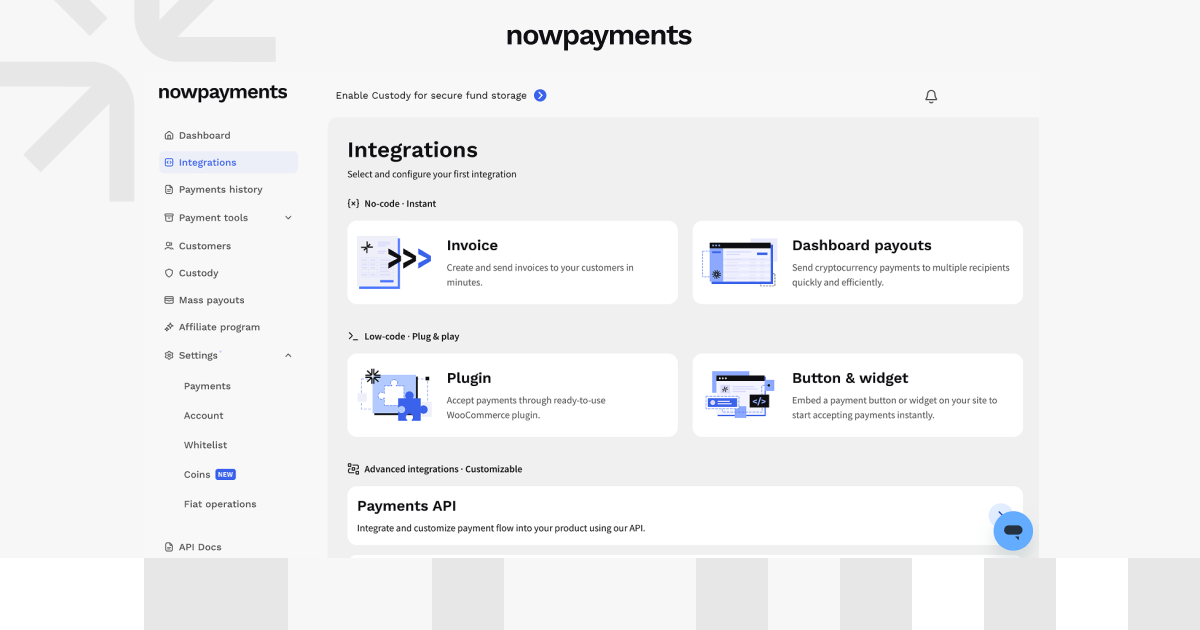
The page includes everything from simple invoice and plugin setups to API, SDK, and AI options.
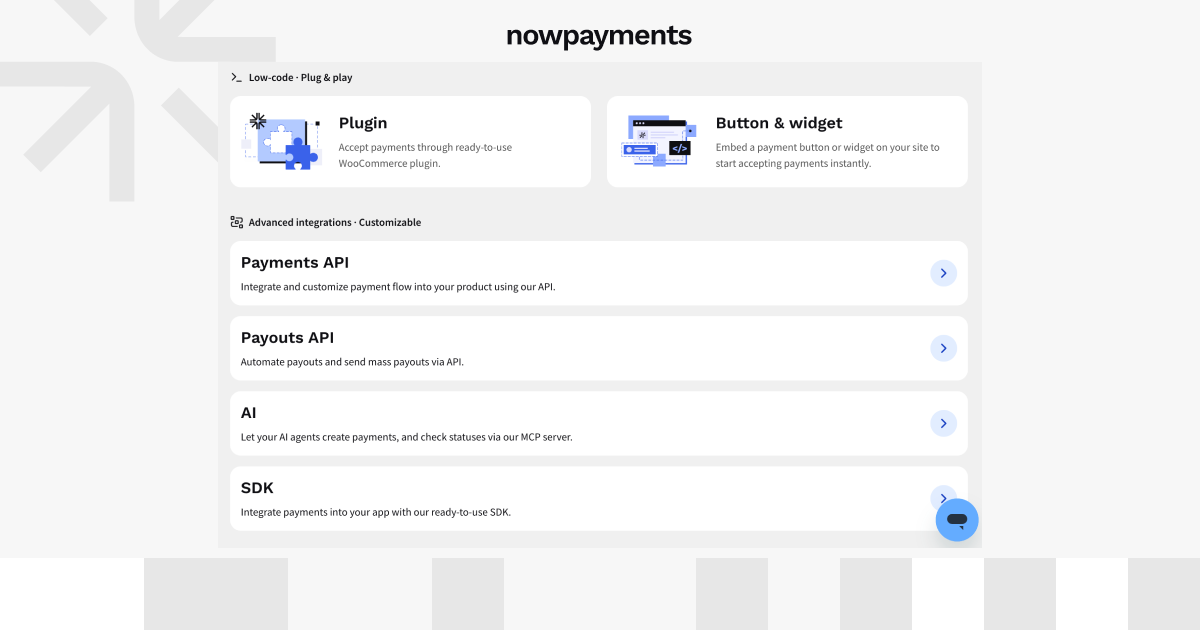
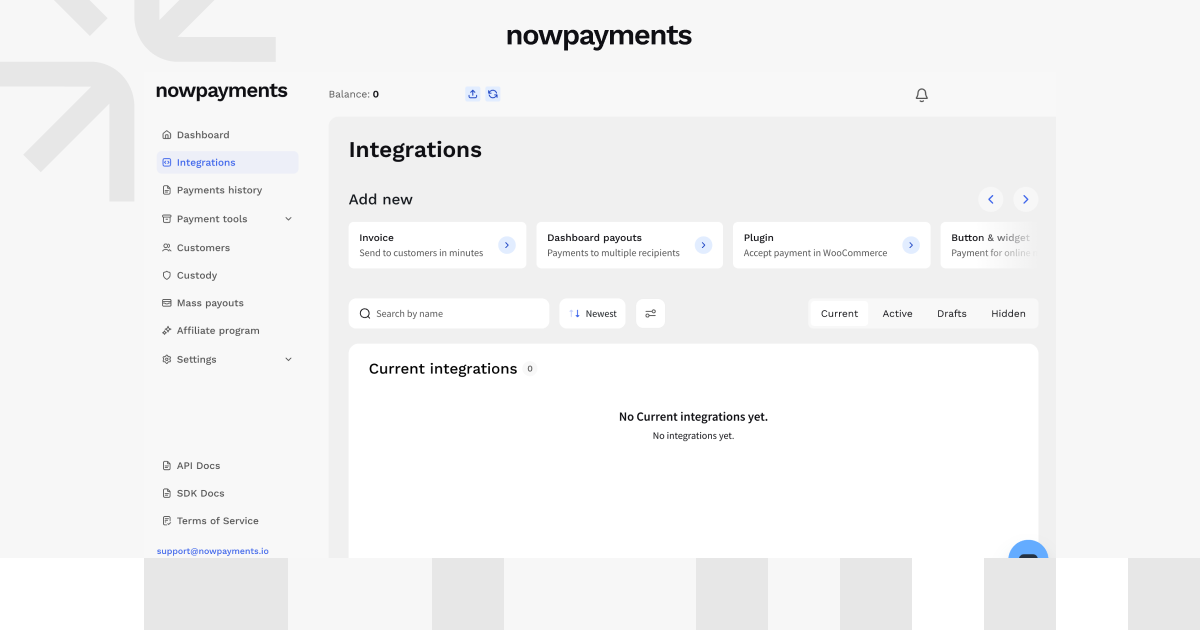
New integrations can be started from the Add new area.
The dashboard separates existing setups into Current, Active, Drafts, and Hidden. If you stop halfway through a setup, it stays in Drafts until you come back to it. You can also hide an integration from the main view without disabling it.
Accept Payments
There are a few different ways to accept payments through NOWPayments. Some are ready to use with little or no development work, while others are built for custom checkout logic.
| Invoice | Button | Widget | WooCommerce Plugin | Payments API | SDK | |
| Best for | Trying a hosted checkout | Adding a simple payment entry point | Keeping more of checkout on-site | WordPress stores | Custom checkout or backend flows | Developers working with the NOWPayments SDK |
| Setup level | No-code | Low-code | Low-code | Plug-and-play | Advanced | Advanced |
| Where it works | Hosted payment page | Website | Website | WooCommerce store | Your app or backend | Your app or backend |
| Main use | Create and preview an invoice | Add a payment button | Embed the payment interface | Add NOWPayments to WooCommerce | Build payments through the API | Build payments with SDK methods |
Invoice
Where to find it: Integrations → Invoice
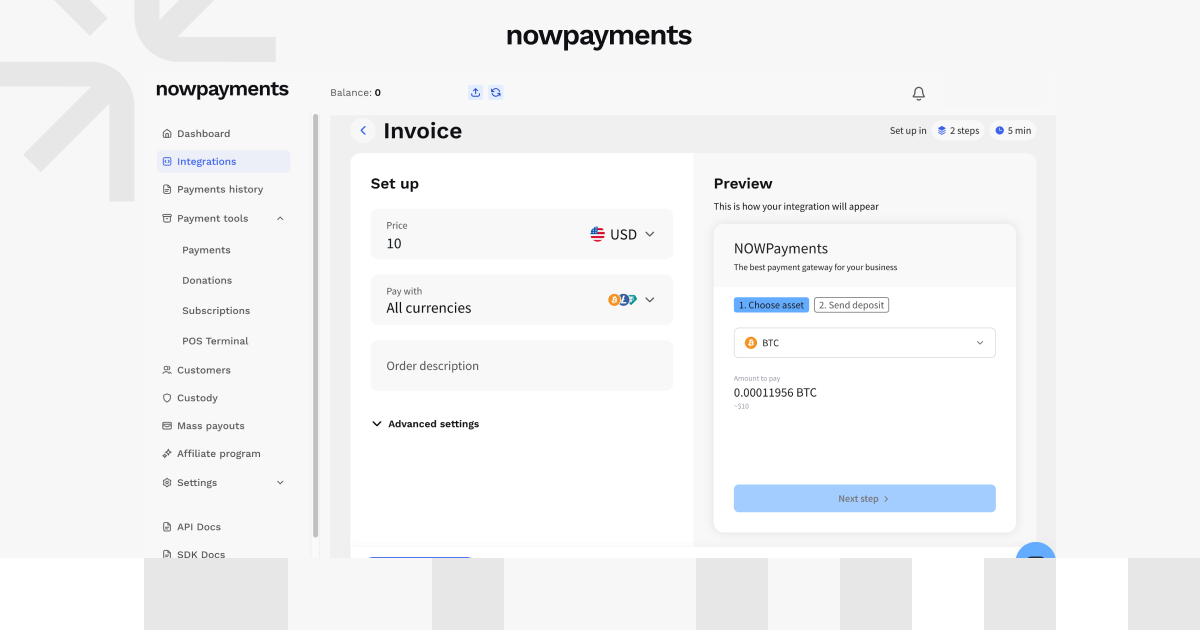
The invoice option is the quickest way to try a hosted payment flow from the dashboard. Enter the price, choose the currency, and add an order description.
The preview beside the form shows what the customer will see before you create the invoice.
Button
Where to find it: Integrations → Button & Widget → Button
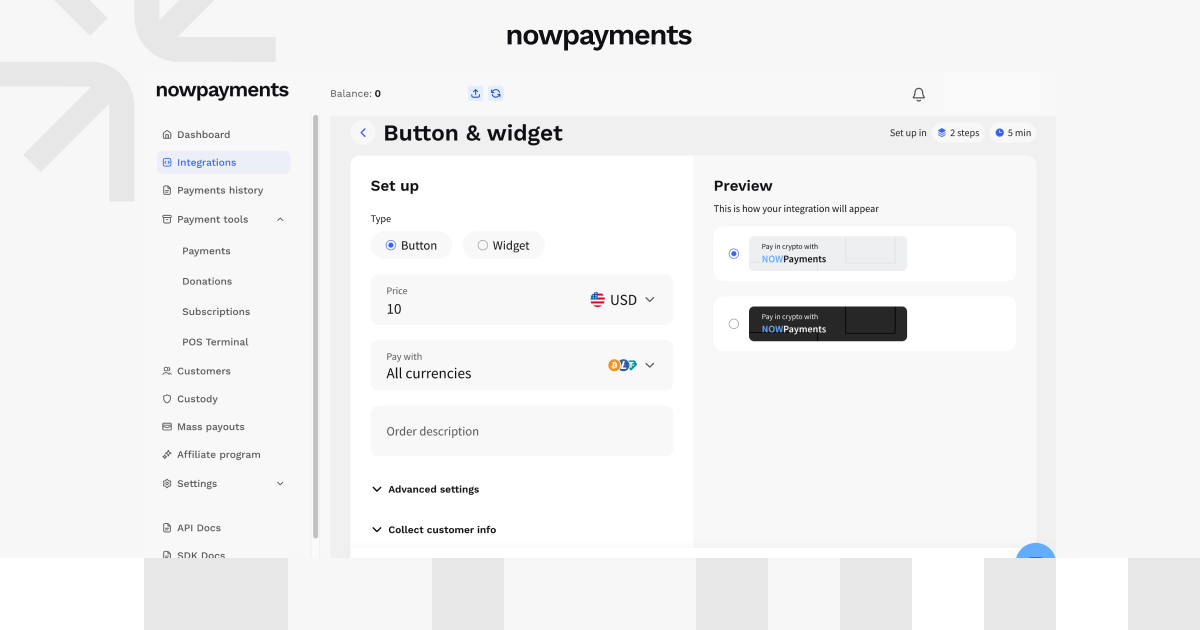
The Button option gives you a compact payment button that you can place on your website.
You can set:
- payment amount and fiat currency
- cryptocurrencies customers can use
- order description
- whether the customer pays the transaction fee
- a fixed exchange rate for 10 minutes
- customer details you want to collect
The preview shows the button before you create it, including the available visual styles.
Widget
Where to find it: Integrations → Button & Widget → Widget
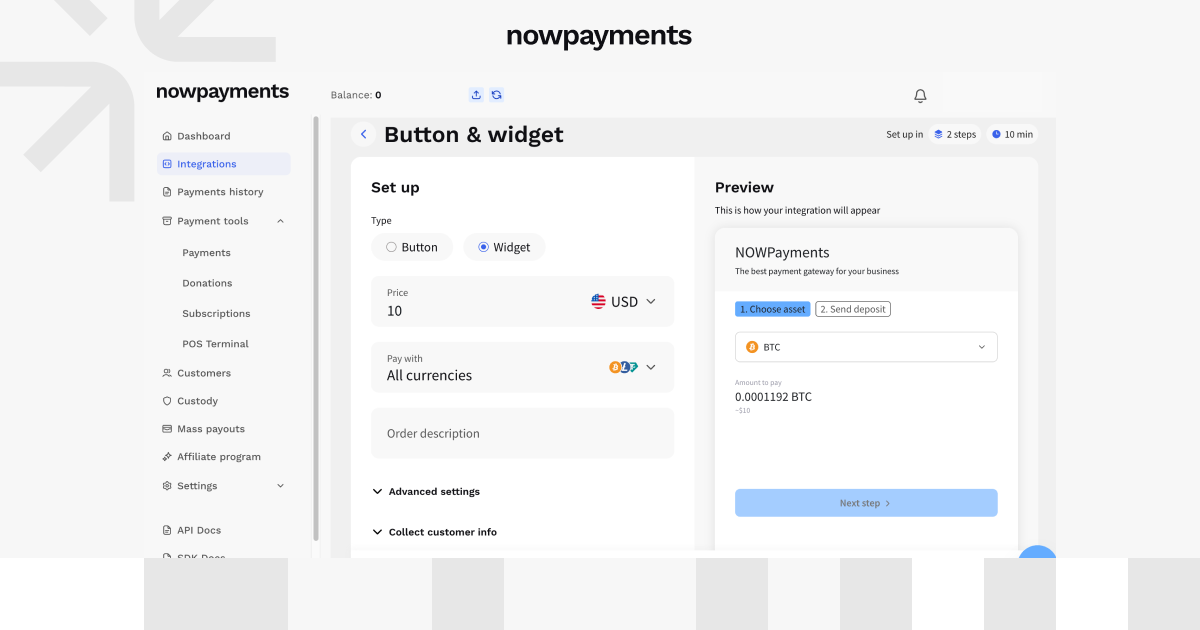
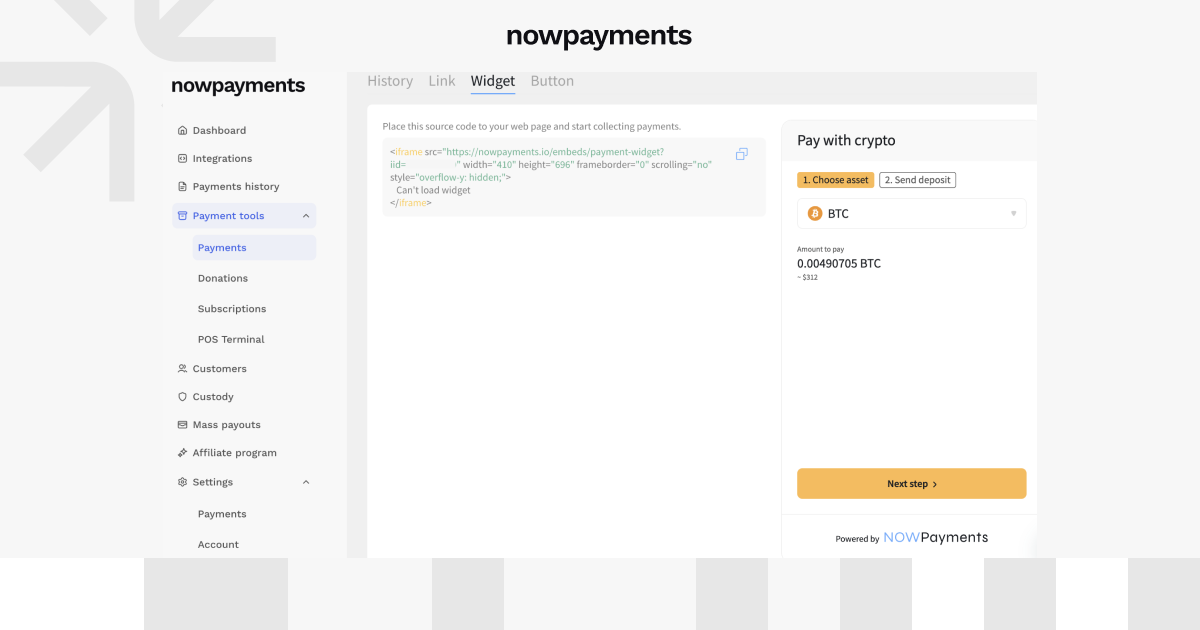
The widget keeps more of the payment process directly on the page.
It uses the same core settings as the button, but instead of showing only a checkout entry point, it displays the payment interface itself. Customers can choose an asset, see the amount to pay, and move to the next step inside the widget.
Use it when you want more of the checkout to stay visible on your site.
WooCommerce Plugin
Where to find it: Integrations → Plugin
The WooCommerce plugin is for WordPress stores that want to add NOWPayments to checkout.
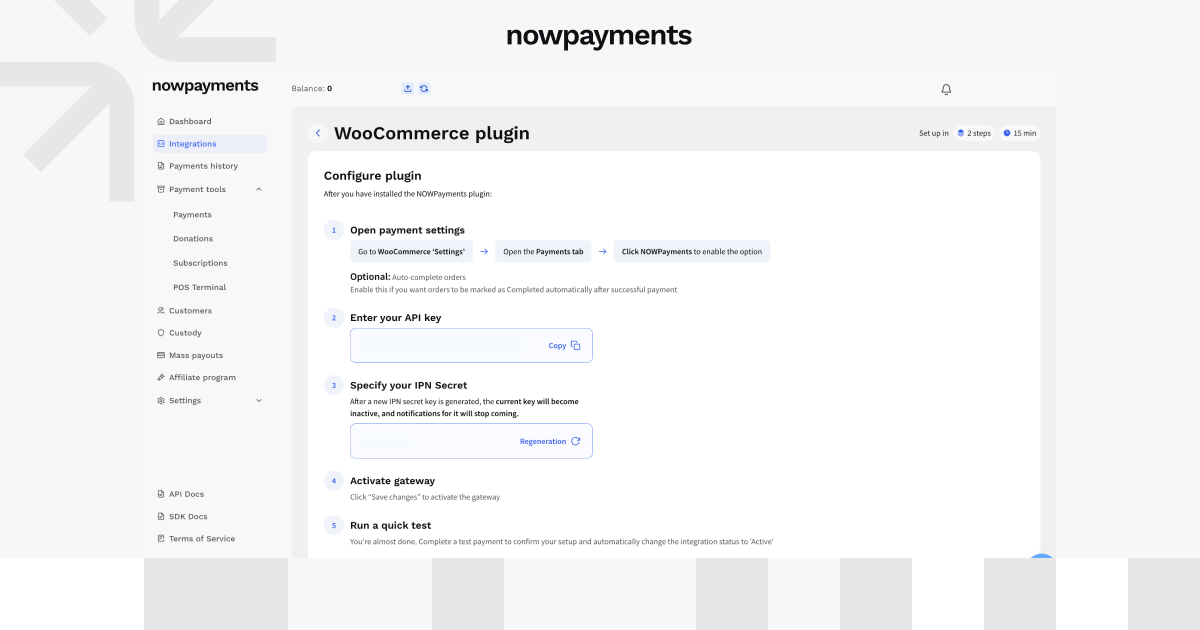
After the plugin is installed, the dashboard walks you through the main settings:
- open WooCommerce payment settings
- enable NOWPayments in the Payments tab
- add the API key
- generate or update the IPN Secret
- activate the gateway
- run a test payment
You can also choose to mark orders as completed automatically after a successful payment.
Once the test payment goes through, the integration moves to Active.
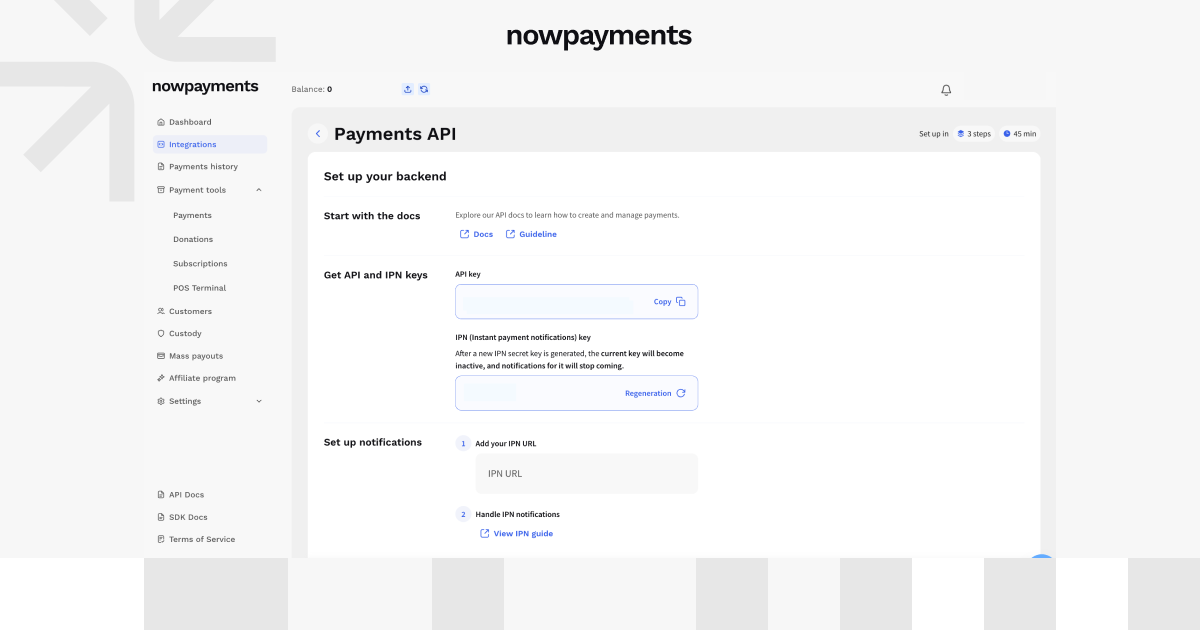
Payments API
Where to find it: Integrations → Payments API
Use the Payments API when you want payments to run through your own application or backend.
The dashboard covers the main parts of the first setup:
- API documentation and integration guidelines
- API key
- IPN key
- IPN URL
- notification handling
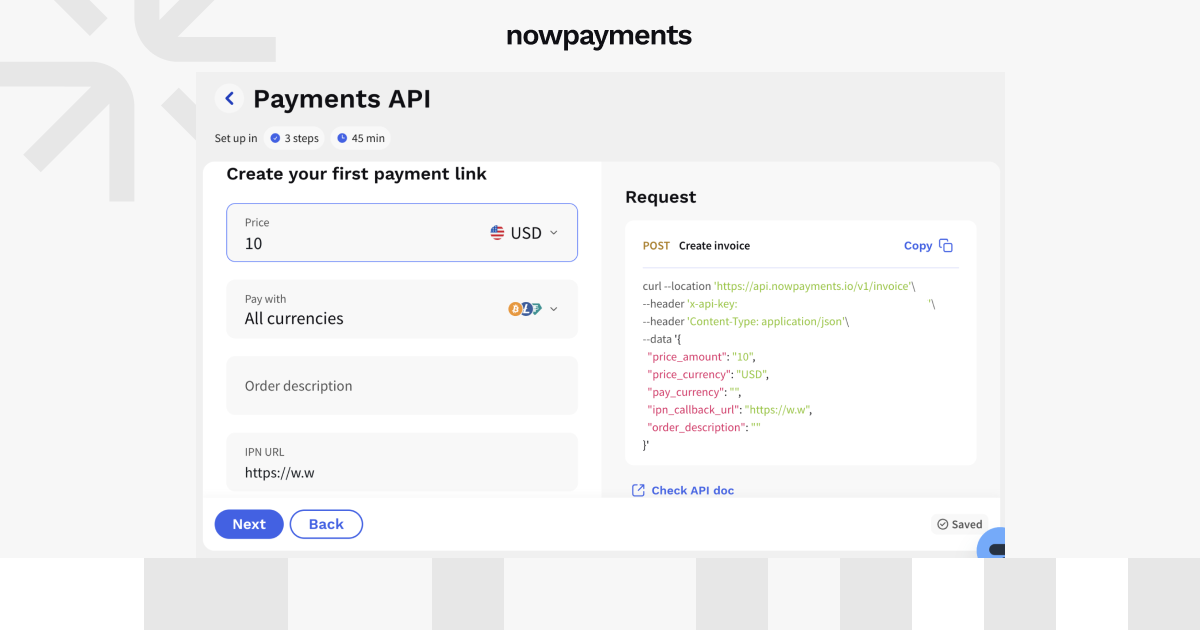
- first payment link
- generated API request
The request preview shows the POST invoice call together with parameters such as price_amount, price_currency, pay_currency, ipn_callback_url, and order_description.
The integration becomes active after you complete the setup and successfully create an invoice with the specified callback URL.
SDK
Where to find it: Integrations → SDK
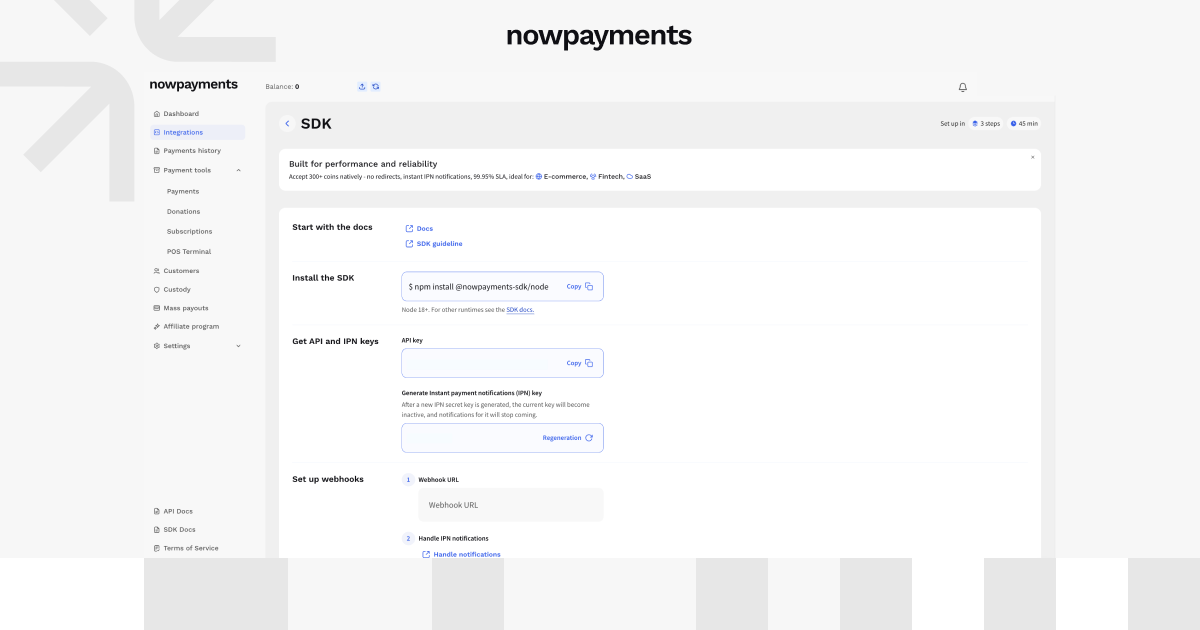
The SDK is useful if your development team would rather work with ready-made SDK methods than build every API request manually.
The SDK page puts the main setup pieces in one place. Start with the documentation, install the package using the command shown in the dashboard, then add your API and IPN credentials.
From there:
- Add the webhook URL where payment updates should be sent.
- Create a test invoice or payment.
- Receive the IPN callback in your backend.
- Validate the x-nowpayments-sig signature.
- Check the returned payment status, outcome_amount, and outcome_currency.
Once the test invoice has been created successfully, the integration is treated as complete.
Customize Your Payment Experience with Branding
You can manage checkout branding under Settings → Account → Branding.
From there, you can set:
- logo style or initials
- company name
- company description
- light or dark theme
- accent color
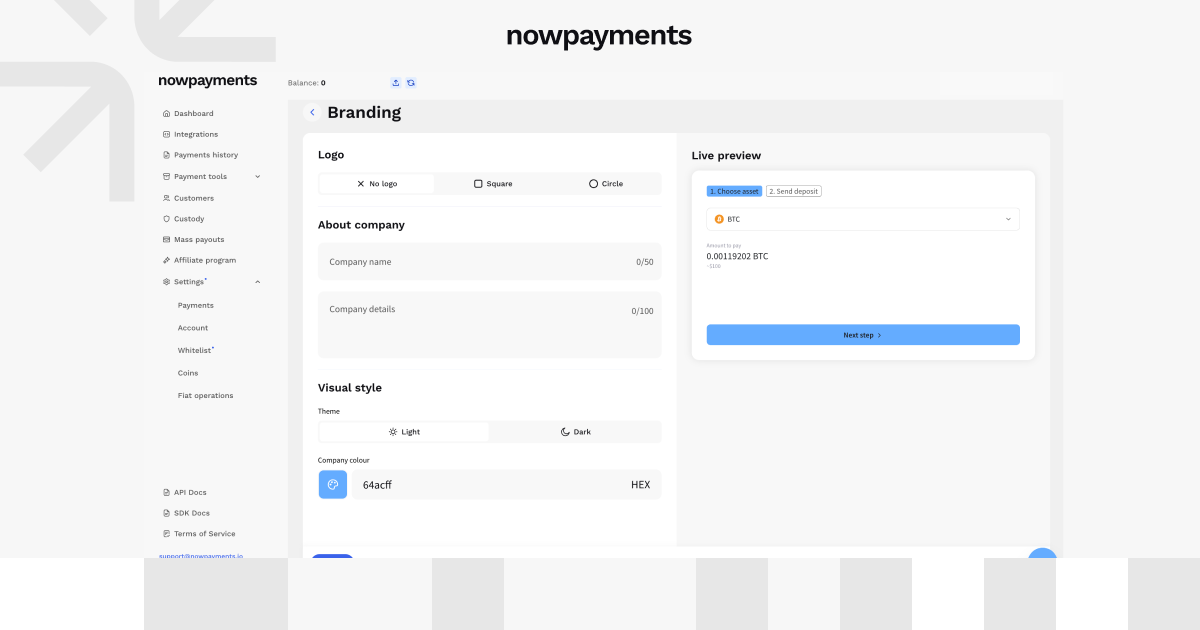
The color can be picked manually or entered as a HEX value.
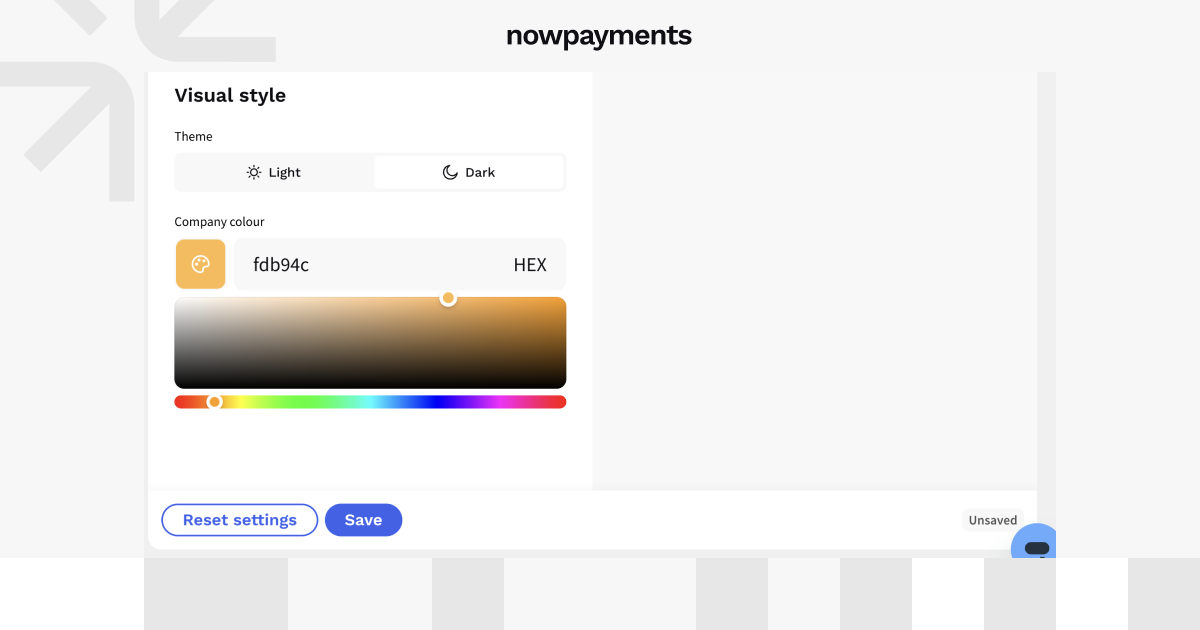
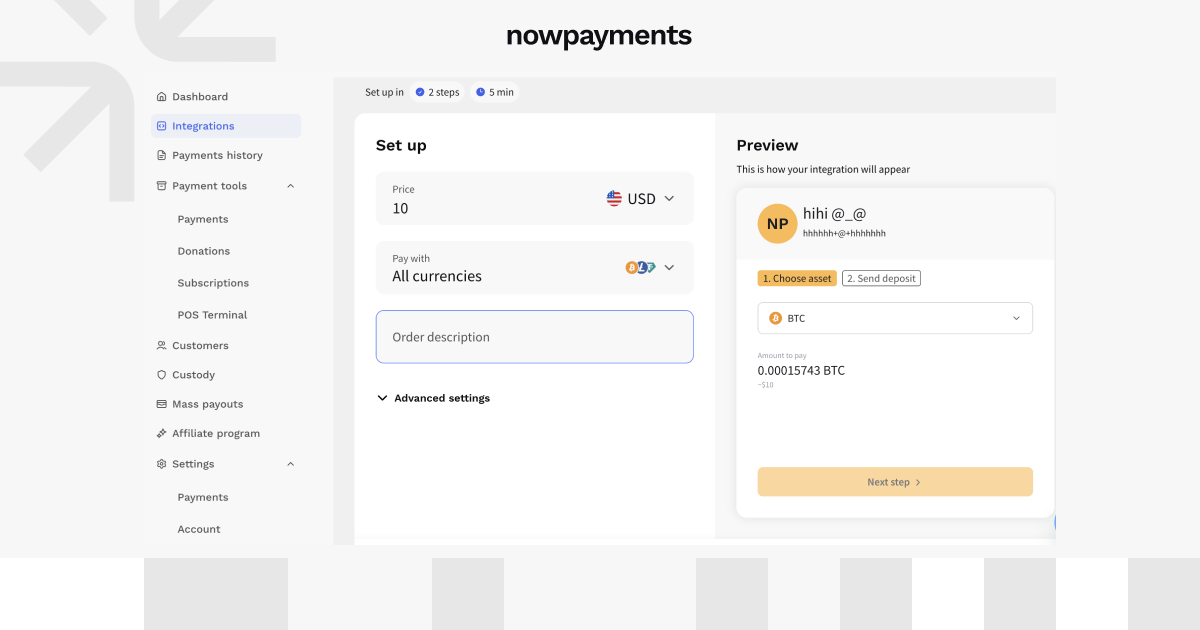
The same page also shows a live checkout preview, so you can see how the company name, description, logo or initials, and accent color will look before saving.
You can also open these settings while creating a payment tool by clicking Customize branding.
The same visual identity can also be carried into embedded payment widgets, helping the checkout look consistent with the rest of your site.
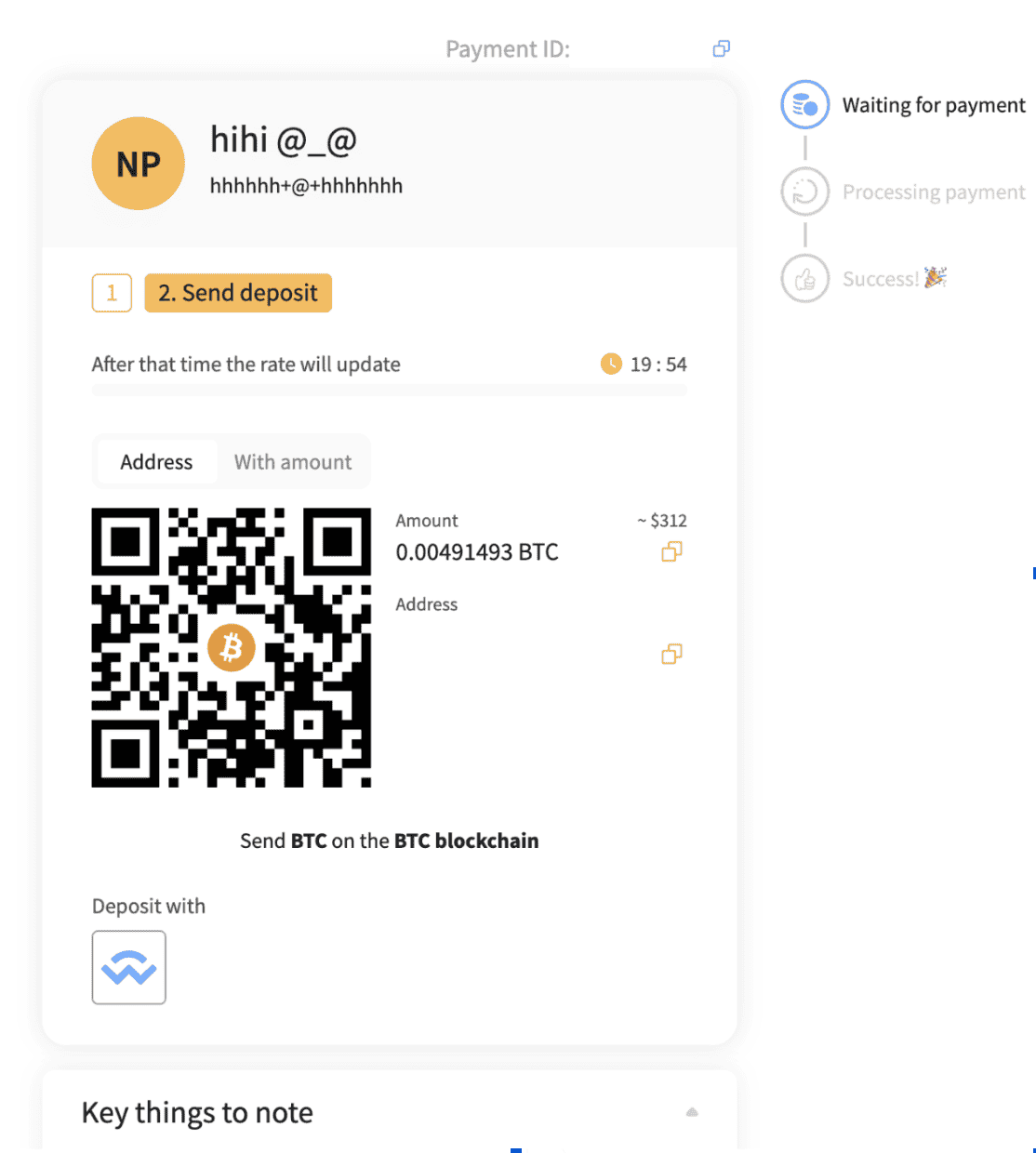
Customers continue to see the selected branding after they move to the payment step. The company identity and accent color remain visible alongside the payment amount, QR code, address, and transaction status.
Send Payouts
There are two main ways to set up payouts.
Use Dashboard Payouts when you want to create them from the NOWPayments account. Use Payouts API when payouts should come from your own backend.
| Dashboard Payouts | Payouts API | |
| Best for | Manual payouts and first setup | Automated payout flows |
| Created from | NOWPayments dashboard | Your app or backend |
| Routes | ChangeNOW Pro or external wallet | ChangeNOW Pro or external wallet |
| Completed when | Payout reaches Finished | API payout reaches Finished |
Dashboard Payouts
Where to find it: Integrations → Dashboard payouts
Dashboard payouts helps you create your first payout from your NOWPayments account.
The process covers the key steps:
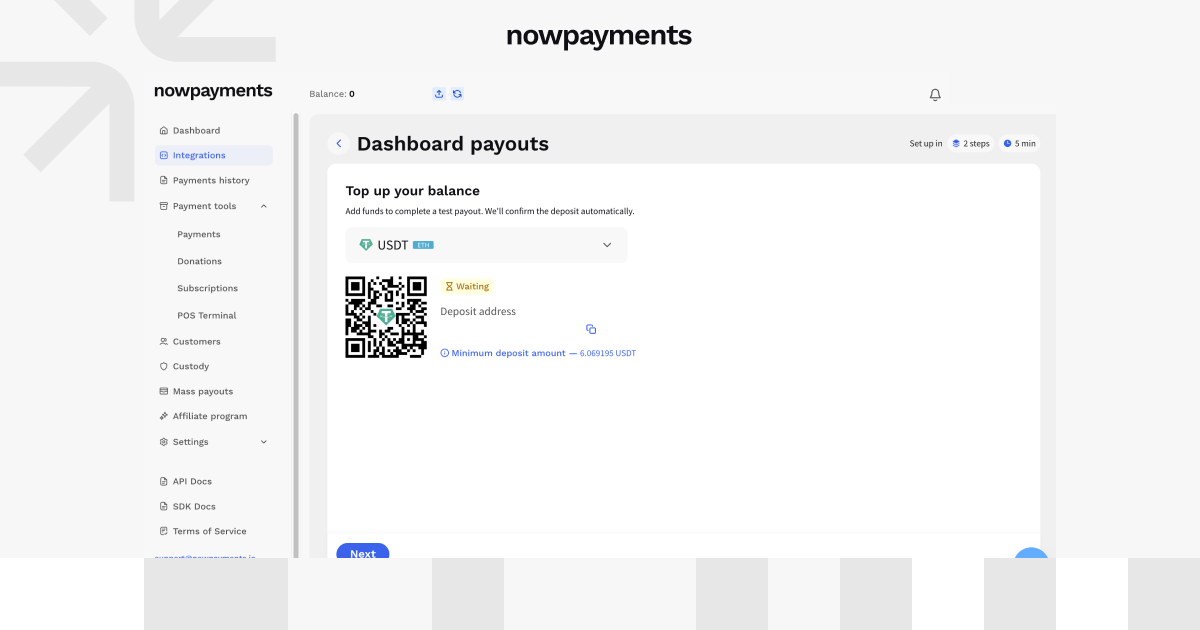
- Top up the account for the test payout.
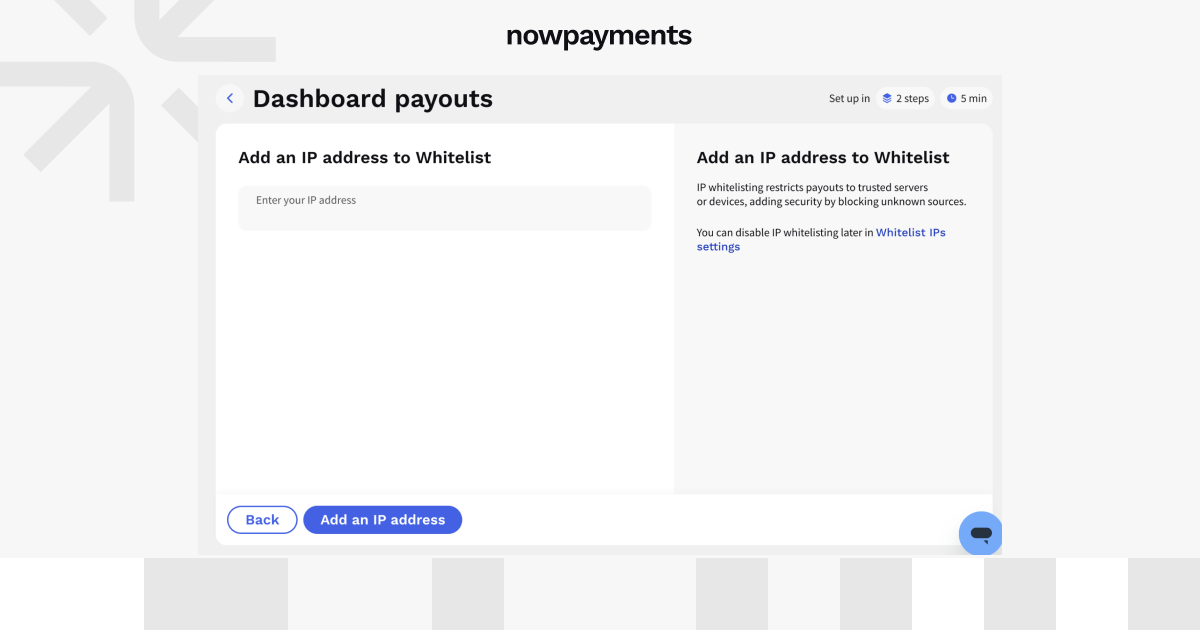
- Whitelist your IP address if needed.
- Confirm whitelist changes with two-factor authentication.
- Choose ChangeNOW Pro or an external wallet.
- Enter the recipient and amount.
- Check the fee and payout status.
The integration is complete when the payout reaches Finished status. You only need to go through this setup once.
Two Payout Routes
You can choose between:
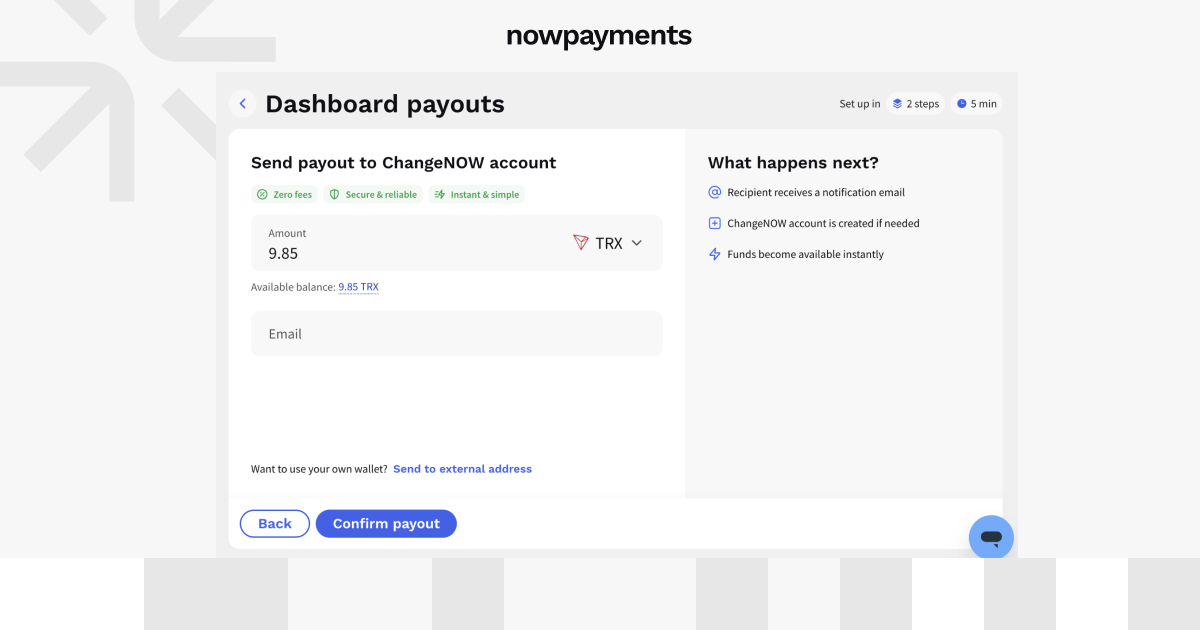
- ChangeNOW Pro payout: enter the recipient’s email and payout amount. They receive an email notification, and the funds become available in their ChangeNOW account.
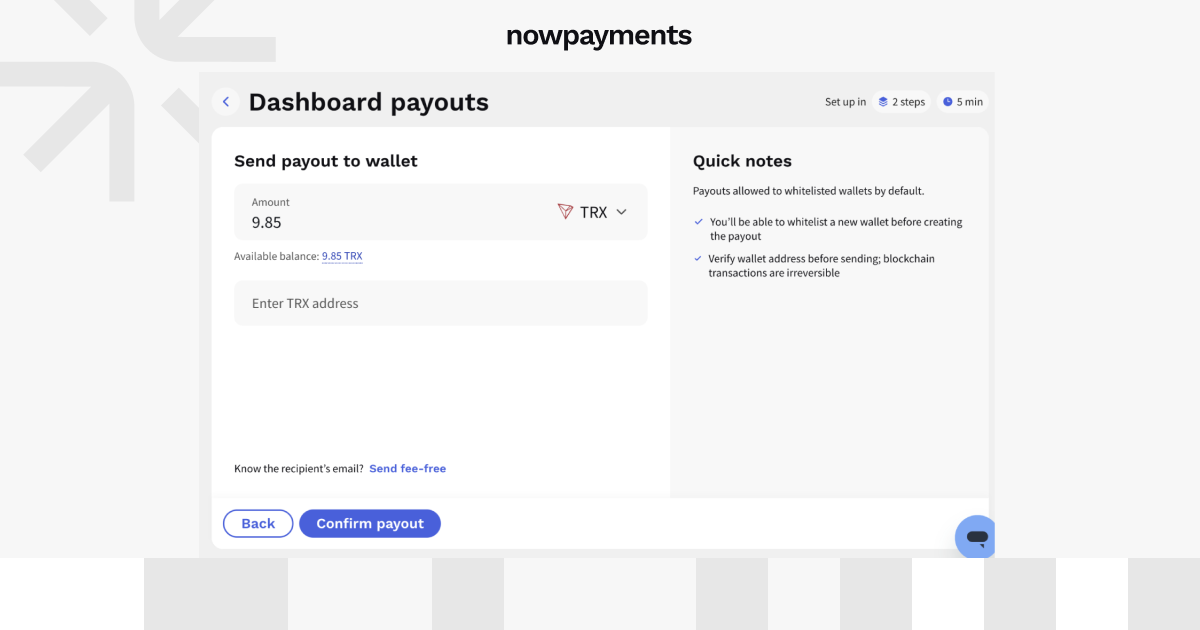
- External wallet payout: send directly to a crypto address. New wallet addresses need to be confirmed with two-factor authentication.
When the payout is created, the final screen shows the recipient, amount, fee, and current status.
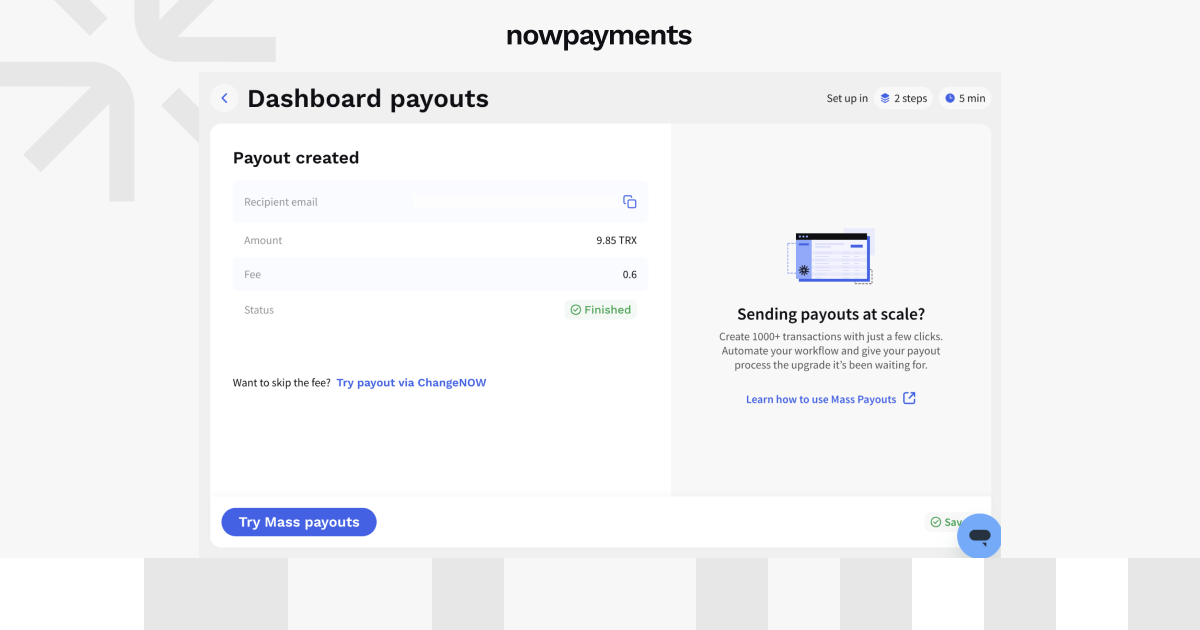
If you need to send payouts in batches later, the dashboard also points you to Mass Payouts.
Payouts API
Where to find it: Integrations → Payouts API
The Payouts API is for businesses that want payouts to run through their own backend.
- The setup starts with funding the account used for the test payout.
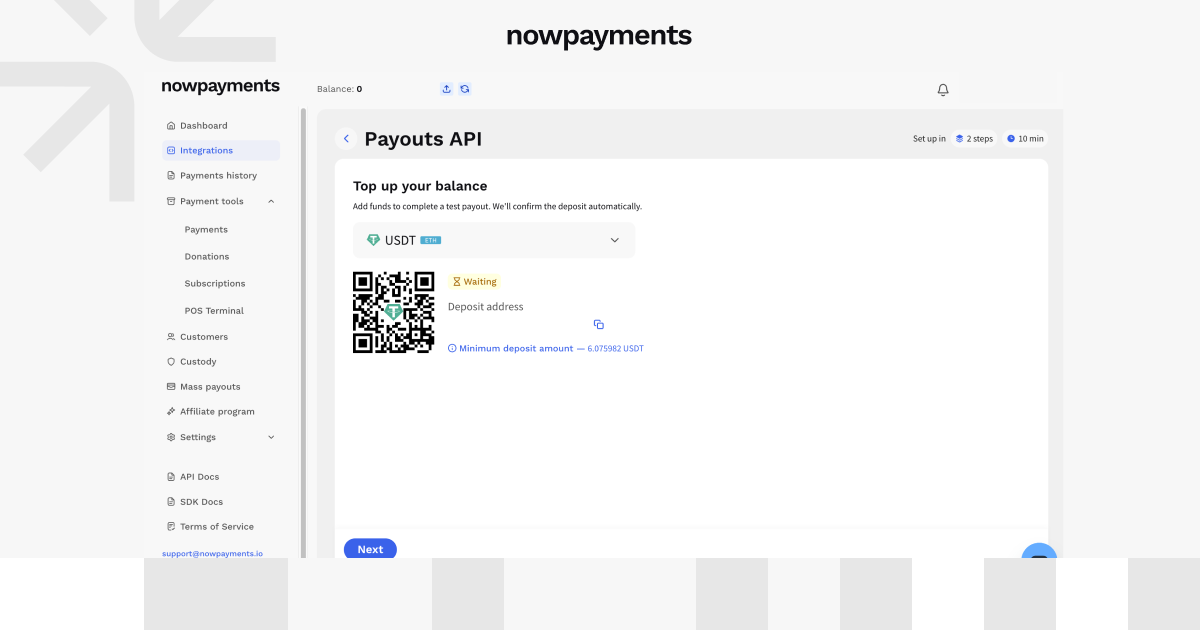
Choose the asset you want to deposit and send enough funds to cover the test transaction. The page shows the deposit address, QR code, and minimum deposit amount.
- Next, add your current IP address to the whitelist if it has not been approved yet.
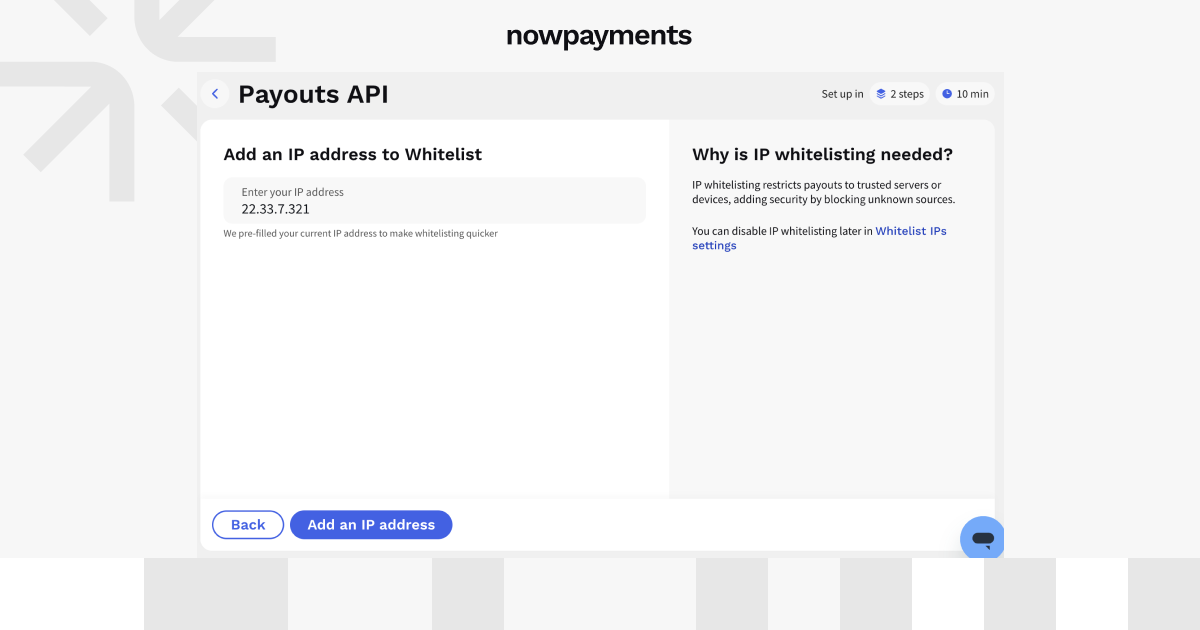
The dashboard pre-fills the current IP address, and the page explains that whitelisting limits payout requests to approved servers or devices.
- After that, you can prepare the backend connection.
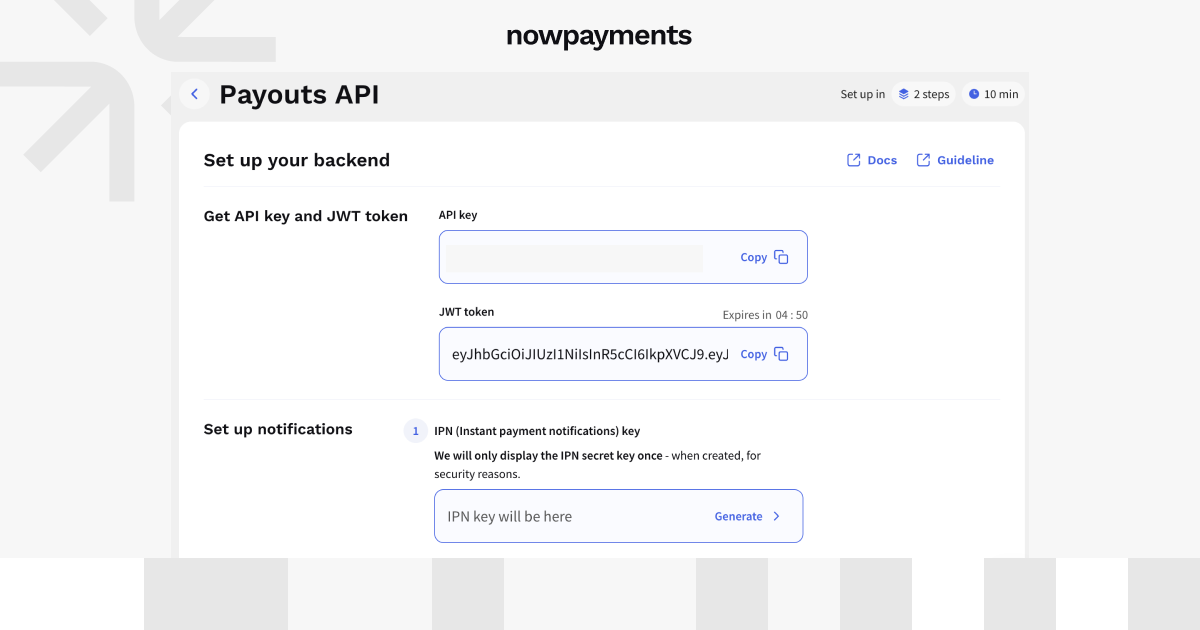
The page provides the API key and a temporary JWT token used to authorize payout requests. Links to the API documentation and integration guidelines are available from the same screen.
- You also need to configure payout notifications.
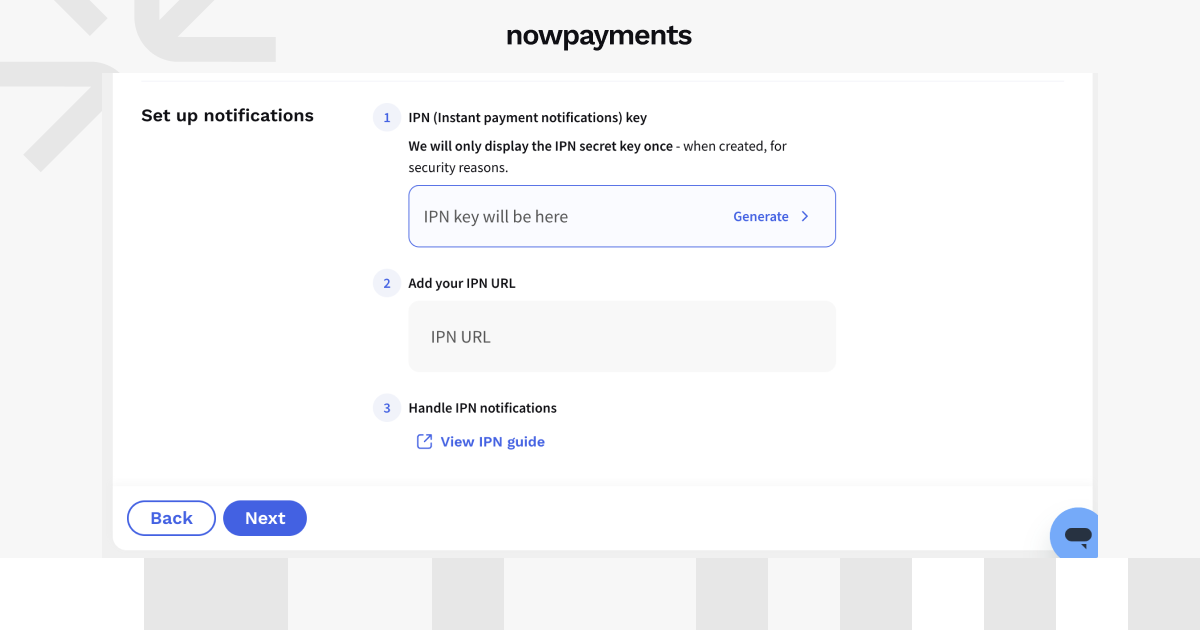
Here you can:
- generate the IPN secret key
- add the IPN callback URL
- open the IPN guide for notification handling
Once the technical settings are ready, you can create the test payout.
Choose the Payout Route
The API flow supports the same two payout routes available elsewhere in the dashboard.
- For a ChangeNOW Pro payout, enter the payout amount and the recipient’s email address.
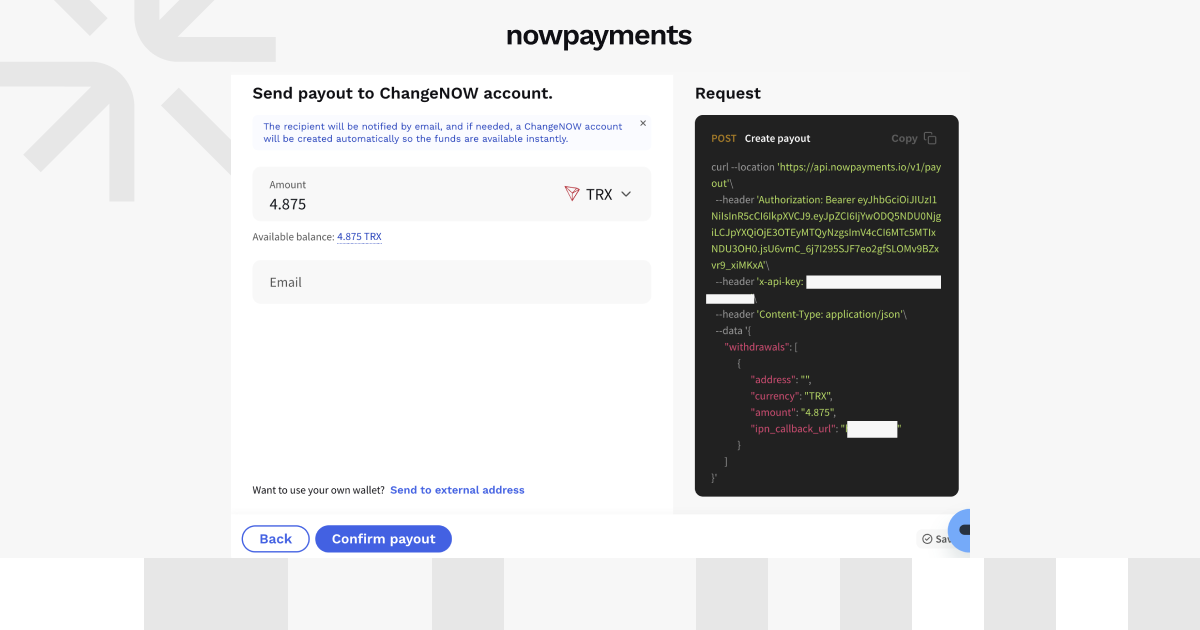
The request preview on the right shows the POST payout call, including the authorization token, API key, amount, currency, and ipn_callback_url.
- You can also switch to an external wallet payout and enter the recipient’s crypto address instead.
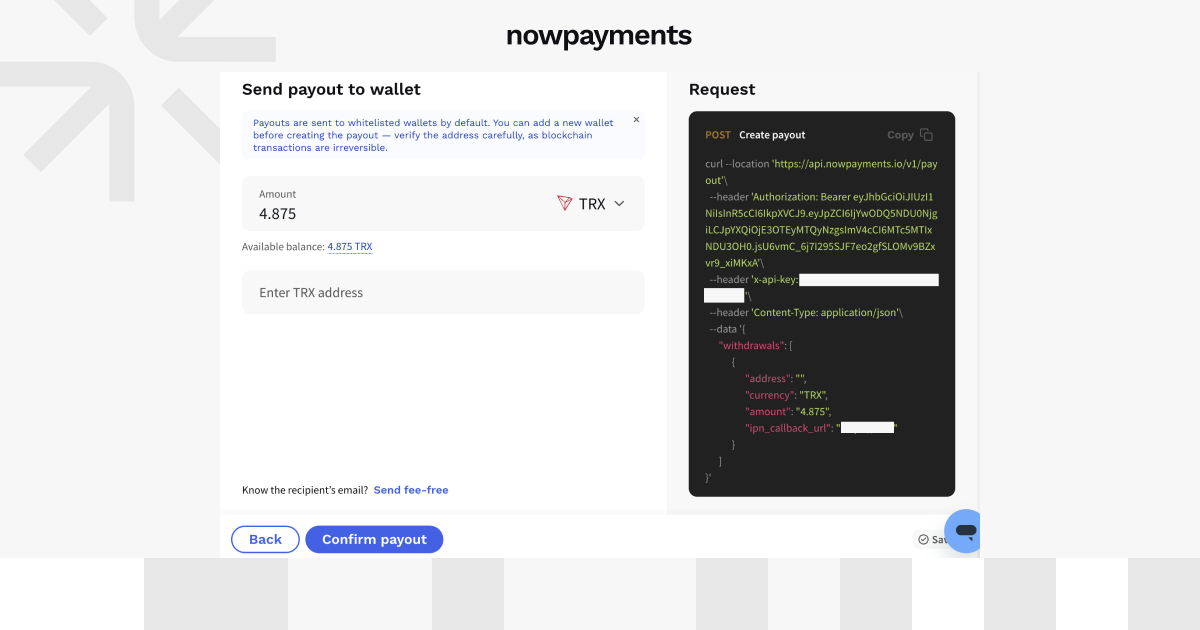
External wallet payouts are sent to whitelisted addresses by default, so a new wallet may need to be added before the payout is created.
After you confirm the payout, the dashboard shows both the transaction details and the API response.
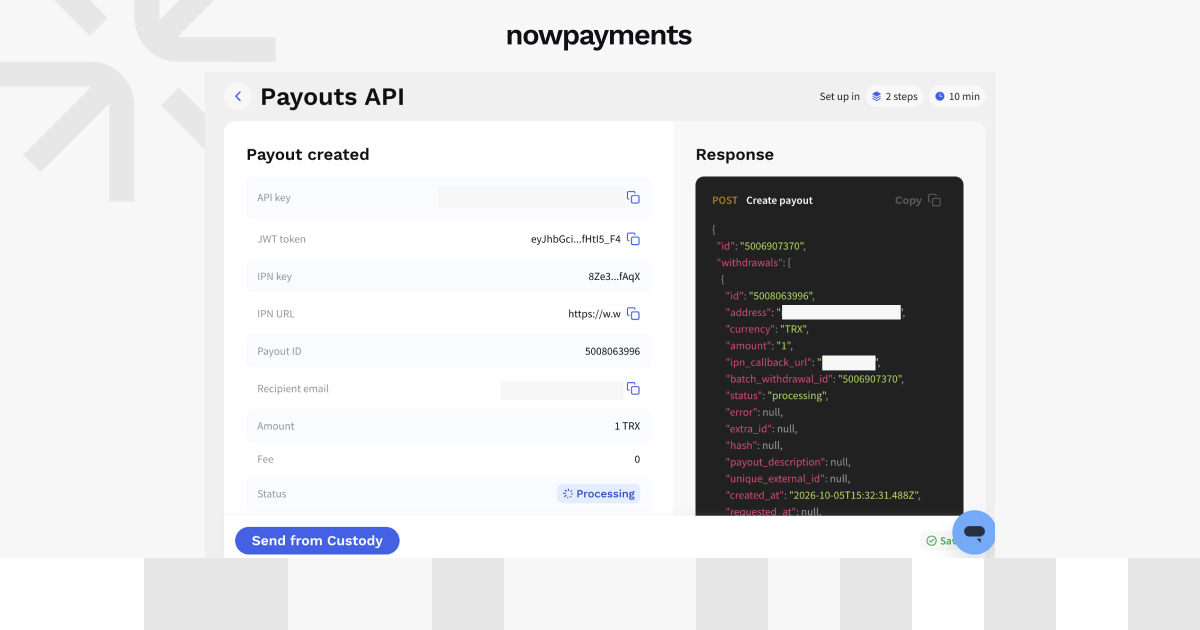
The payout card includes the API and IPN details, payout ID, recipient, amount, fee, and current status. The response panel shows the data returned by the payout endpoint.
The integration is complete when the payout reaches Finished status.
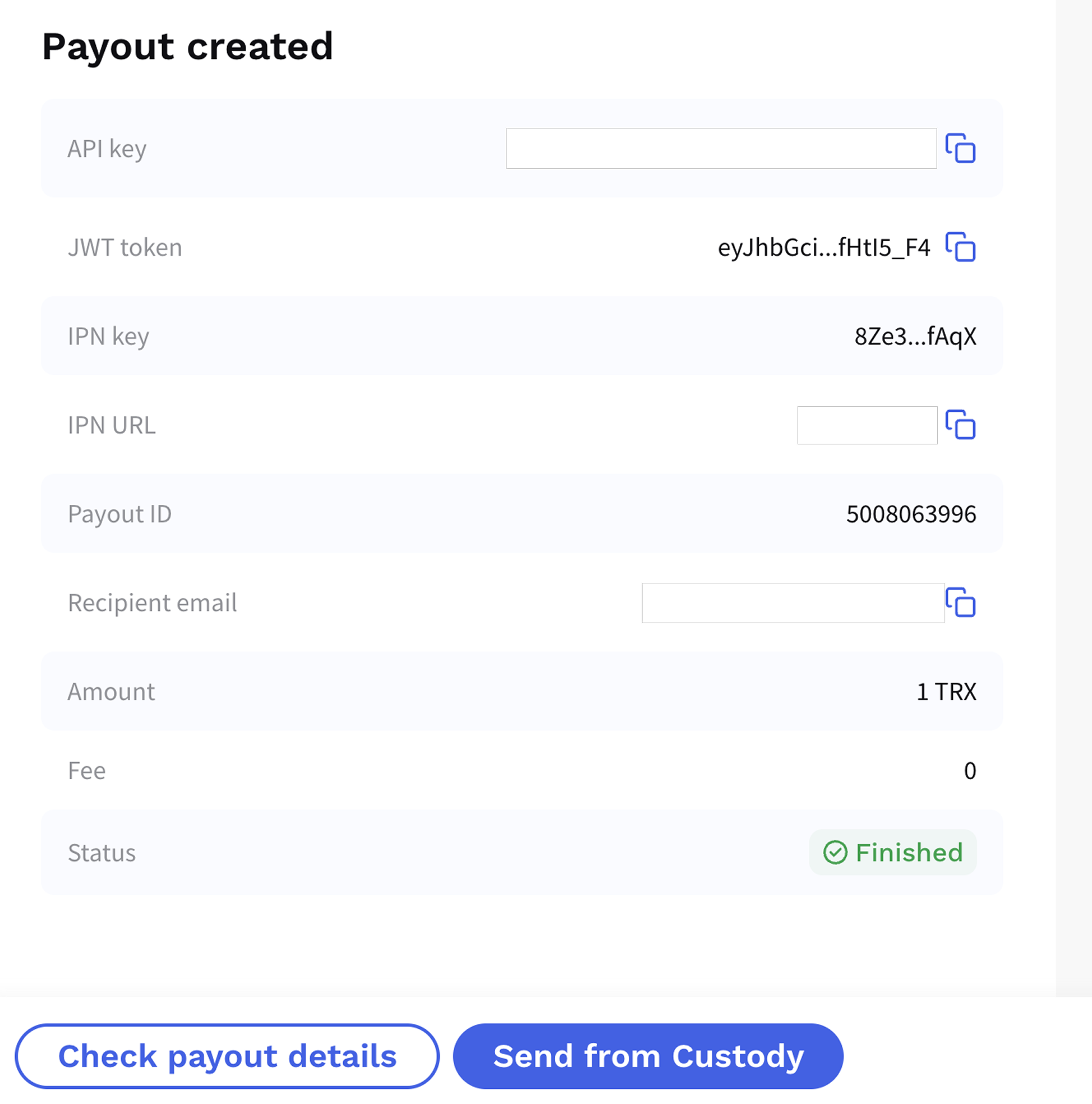
From the completed payout screen, you can open Check payout details to review the transaction or continue to regular payouts from Custody.
If your first test payout was sent to an external wallet, the integration also gives you the option to try the ChangeNOW Pro email route.
AI Integration
Where to find it: Integrations → AI
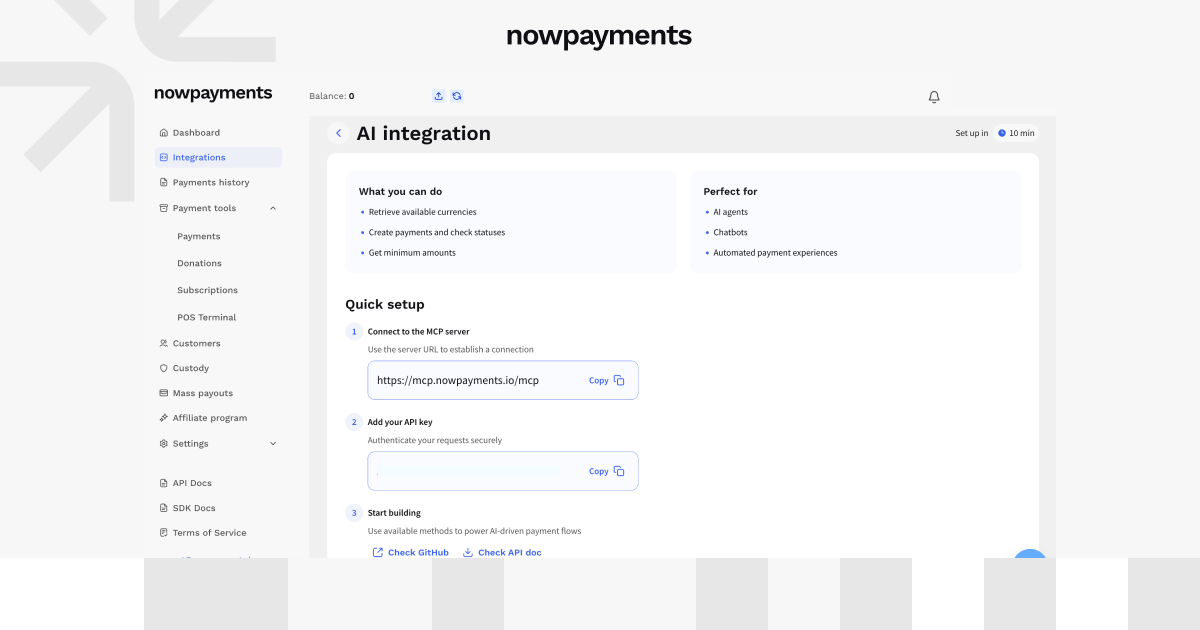
The AI integration is for teams building AI agents, chatbots, or other automated payment experiences.
From the setup page, you can:
- connect to the NOWPayments MCP server
- add your API key
- retrieve available currencies
- create payments
- check payment statuses
- get minimum payment amounts
- open GitHub resources and API documentation
To get started, connect to the MCP server, add the API key, and use the available methods in your application.
Choosing the Right Setup
If you are not sure where to start, match the integration to the way you want to accept payments or send payouts.
| What you need | Best fit | Why |
| Test a hosted checkout | Invoice | Create and preview a payment without development work |
| Add a simple payment entry point to a site | Button | Embed a compact checkout button |
| Keep more of checkout on your site | Widget | Show the payment interface directly on the page |
| Accept payments in a WordPress store | WooCommerce Plugin | Connect NOWPayments to WooCommerce |
| Build checkout into your own product | Payments API | Control the payment flow from your backend |
| Work with ready-made developer methods | SDK | Build with the NOWPayments SDK instead of individual API requests |
| Create payouts from the dashboard | Dashboard Payouts | Send payouts manually from your NOWPayments account |
| Trigger payouts from your own system | Payouts API | Automate outgoing transactions through your backend |
| Connect an AI agent or chatbot | AI Integration | Use the MCP server and payment methods programmatically |
You can use more than one integration. For example, a WooCommerce store can use the plugin for checkout while another part of the product runs through Payments API and outgoing transactions use the Payouts API.
Getting Started
Start with the task you need to solve now.
- Decide whether you need to accept payments, send payouts, embed checkout, or connect an application.
- Open Integrations in your NOWPayments dashboard.
- Choose the option that matches the task.
- Complete the setup and run the available test payment or payout.
- Check that the integration has reached its completed or active state.
You can start with the simpler option and switch to API or SDK-based flows later if the setup becomes more complex.